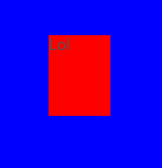
A <Text> with a Padding of 10,20,30,40 (so 20 points of top padding and 10 of Left padding) is aligned left and top, effectively adding padding to the bottom and the right instead:
Here is the full code:
<App>
    <Panel Background="Blue">
        <Text Background="Red" Alignment="Center" Padding="10,20,30,40">Lol</Text>
    </Panel>
</App>
zaulin
June 14, 2016, 8:33am
2
I have the same problem with TextInput
This is expected behavior. Padding applies to the children of an element and the text is part of the <Text> element (not a child of it).
zaulin
June 14, 2016, 9:02am
4
that is my case (actuaylly it was not exacty the “text” case):
<TextInput ux:Class="SingleLineTextInput" TextColor="#000" Margin="10,5,10,5" Height="30" TextWrapping="Wrap" Alignment="VerticalCenter" TextAlignment="Left" TextTruncation="Standard" PlaceholderColor="#00f">
<Rectangle CornerRadius="8,8,8,8" Padding="7,0,7,0">
    <Stroke Width="1" Brush="#000"/>
</Rectangle>
the padding was working pre-0.20
Yes, this change was reported in the changelog for 0.20
Padding on visuals/primitives is now applied differently to be more useful and consistent. The local visual does not honor the padding anymore, only the children.
<Rectangle Color="#F00" Padding="5">
    <Rectangle Color="#00F"/>
</Rectangle>
Previously, the red rectangle would not be visible, since it was the same size as the child. Now, it will show in the padding area, since it ignores the padding for the local visual.
zaulin
June 14, 2016, 9:30am
6
sorry… i think my post was not complete… my rectangle was INSIDE the TextInput
<TextInput ux:Class="SingleLineTextInput" TextColor="#000" Margin="10,5,10,5" Height="30" TextWrapping="Wrap" Alignment="VerticalCenter" TextAlignment="Left" TextTruncation="Standard" PlaceholderColor="#00f">
<Rectangle CornerRadius="8,8,8,8" Padding="7,0,7,0">
    <Stroke Width="1" Brush="#000"/>
</Rectangle>
</TextInput>
so i already have the padding in the inner rectangle
btw: is it possible to have a multiline textinput ?
Can you explain in a bit more detail what result you’re getting vs. what you are expecting?
In your last example you only have padding on the rectangle, which means that the padding won’t be applied to anything here (because padding applies to the children of the element and the rectangle has no visual children).
zaulin
June 14, 2016, 9:38am
8
i think i get it… as my inner rectangle “contains” the textarea padding it has no sense (the padding would have the same effect as margin i guess).
so… should i create another rectangle inside the one with margin (and apply the padding here)?
zaulin
June 14, 2016, 9:41am
9
“You can now style TextInput by putting elements inside it. It behaves like a DockPanel where remaining space is the actual editor”
i expect to get an inputbox with a rectangle (i guess the “common input box”) and i would like the text area to be smaller than the rectangle
Not exactly, look at the example I posted above. You should not have the padding on the innermost element, but on the parent .
As for multiline text edit this is also mentioned in the 0.20 migration guide
TextInput is now always single line. To get the multiline version of TextInput, use a TextView instead.
zaulin
June 14, 2016, 9:51am
11
this code:
<TextInput ux:Class="SingleLineTextInput" TextColor="#fff" Background="#f0f" TextWrapping="Wrap">
<Rectangle CornerRadius="8,8,8,8" Padding="20,0,20,0" Background="#00f">
    <Stroke Width="1" Brush="#000"/>
    <Rectangle Fill="#f00"/>
</Rectangle>
</TextInput>
i get this result:
i would like the text to wrap to the red area
Then just put the blue rectangle outside of the textinput.
E.g.
<Rectangle CornerRadius="8,8,8,8" Padding="20,0,20,0" Background="#00f" Dock="Top">
    <Stroke Width="1" Brush="#000"/>
    <TextInput TextColor="#fff" Background="#f0f" TextWrapping="Wrap" Value="asdasd">
        <Rectangle Fill="#f00"/>
    </TextInput>
</Rectangle>
zaulin
June 15, 2016, 8:49am
13
Thnx… i was in tunnel vision mode
zaulin
June 15, 2016, 9:00am
14
but now i have a doubt:
I want to have a class (so all my input boxes look the same)
if i do what u suggested:
<Rectangle ux:Class="MyInput">
    <TextInput ...>
it would work unless i want to do something like:
<MyInput ValueChanged="{myFunction}"/>
as now the class is a rectangle (and rectangle does not have a property “ValueChanged”
Why would you want to expose a function like that? It might be a better way if you just explain what you want to achieve.
zaulin
June 15, 2016, 4:34pm
16
I would like to have all my input boxes look the same… so i want to create a class for it.
How do i want those input boxes to look like?
i want to have a rectangle with the text inside.
The problem i’m facing is that when doing so there is no padding on the input text:
before 0.20 i had a padding in the TextEdit and it worked fine:
PRE 0.20 code:
<TextEdit ux:Class="MyInputText" ClipToBounds="false" Padding="20,7,20,7" Alignment="VerticalCenter" TextAlignment="Left" FontSize="14" >
    <Rectangle Layer="Background" CornerRadius="10">
        <Stroke Width="1" Brush="#7d7d7d"/>
    </Rectangle>
</TextEdit>
Remi solution would work unless i want to create a class and i would do something like:
<MyInputText ValueChanged="{doSomething}/>
so the questions is: how do i do that POST 0.20 ?
Hi!
Please have a look at the Changes to TextInput and TextEdit APIs section in the changelog for 0.20 (https://www.fusetools.com/downloads ).
Basically TextEdit is gone and replaced by TextInput which acts as a DockPanel where the text is Dock="Fill". This makes it nice to make stuff like this:
<TextInput ux:Class="SearchField" PlaceholderText="Search..." Padding="8" Margin="8">
    <Button Text="GO!" Dock="Right" Margin="4,0,4,0" />
    <Rectangle Layer="Background" CornerRadius="8">
        <Stroke Color="#000" />
    </Rectangle>
</TextInput>
zaulin
June 20, 2016, 9:34am
18
the problem was that i was missing the Layer=“Background” in the project (i guess i removed it in one of the copy+pastes)
thnx!
zaulin
June 20, 2016, 9:36am
19
what i haven’t found is the multiline TextInput (the TextBox)
Yes, this is a change in 0.20. A multiline textinput is very different than a singleline one, so they are now split up into <TextInput /><TextView />